Git is mandatory if you want to be a developer. I wrote this guide based on my own experience to help my teammate (and you) get comfortable with workflows.
Git cheatsheet
If you don't actually understand what Git is doing under the hood, the complex stuff is just going to be a nightmare.
What is Git?
Git is a version control system, it lets you keep track of everychange you've made to your codebase, and assists with keeping multiple versions of the same codebase in sync and up-to-date.
Stages of Git
- Modified: You have changed a file, but you have not yet committed it to git database.
- Staged: You have marked a modified file to go into your next commit snapshot.
- Committed: The data is safely stored in your git database.
Essential Commands
These are the commands you will use daily. Memorize them, but more importantly, understand why you are using them.
config
To configure settings. Whether it be for the repository, the system itself, or global configurations ( global config file is ~/.gitconfig ).
git config --global user.name "Your Name"
git config --global user.email "your.email@company.com"

# Set default branch name to 'main' instead of the legacy 'master'
git config --global init.defaultBranch main

# Set your preferred text editor for commit messages (e.g., VS Code)
git config --global core.editor "code --wait"

# Verify that your setup is correct
git config --list
status
Your best friend. It shows which files are modified, staged, or untracked. Run this often.
git statusadd
Moves a file from the Modified state to the Staged state.
# Add 1 file
git add /path/to/file/index.tsx

# Regex
git add ./*.tsx

# Stage all changed files
git add .
commit
Takes all staged changes and creates a permanent snapshot in your project's history
# Commit with a message
git commit -m "Add helloworld function to index.ts"

# Rewording commit
# This deletes previous commit with a fresh commit
git commit --amend -m "Correct message"
log
Displays the commit history of the current branch. Useful for tracking changes and identifying who did what and when.
git log

# Draw an ASCII commit graph
git log --graph
checkout
Updates all files in the working tree to match the version in the index, or specified tree.
# Checkout to default branch
$ git checkout

# Checkout a specified branch
$ git checkout feat/git

# Create a new branch & switch to it
git checkout -b fix/bug
rebase
Take all changes that were committed on one branch, and replay them onto another branch.
More reading: Git Branching - Rebasing
git rebase main feat/gitmerge
Combines the changes from the specified branch into your current branch.
git merge chore/branch-namepull
Fetches changes from a remote repository and merges them into your current local branch.
# git pull <remote> <branch>
git pull origin main
fetch
Fetches changes from a remote repository. Unlike pull, it does not touch your local working files, and it does not try to merge anything into your current branch.
git fetch originpush
Sends your local commits to a remote repository (like GitHub or GitLab), then merge them into remote branch.
# git push <remote> <branch>
git push origin feat/git

# Link current local branch with a remote branch
git push -u origin feat/git
# Now, anytime you want to push from that same local branch, use shortcut:
git push
Git workflow
Alright, so you know the commands, but how do actual teams put them together? There are a ton of different workflows out there, but most teams rely on some version of the Feature Branch Workflow.
It's exactly what it sounds like. You leave the main branch alone, and every new thing you build gets its own dedicated branch.
Let's pretend we're building a login system.
1. Start from main
Always begin your work from the latest version of the production code.
# Ensure you are on the main branch
git checkout main

# Get the latest updates from the remote
git pull origin main
2. Create feature branch
Create a new branch with a short name. Use a convention like feat/.
git checkout -b feat/login3. Develop, commit
This is the standard development loop. Make small, logical commits.
# ... write code for login feature

git status
git add ./components/login-input.tsx
git commit -m "feat: Create login input component"

# ... write more code
git status
git add ./tests/login-input.test.ts
git commit -m "test: Add unit tests for login input component"
Make a habit of committing often, but make sure each commit is actually a logical chunk of code that works. Because if you mess up, undoing a small step is no big deal. But trying to revert a giant, messy commit is an absolute nightmare.

4. Keep feature branch fresh
While you're building your feature, the rest of the team is merging their own stuff into main. If you wait until the very end to sync up, you're going to walk straight into merge conflict.
You have two choices to pull those updates in: merge or rebase. Honestly, if you want to keep things professional (and keep your lead happy), you should use rebase.
What rebase does is rewrite your branch's history. It picks up your commits and drops them right on top of the latest main, making it look like you just started working five seconds ago. You end up with this really nice, clean, linear timeline.
# On your feat/login
# Get latest remote updates
git fetch origin

# Rebase your changes on top of origin/main
git rebase origin/main
When conflicts happen, Git just pauses everything and makes you sort them out 1 commit at a time. Yeah, it's a bit more of a headache initially than just doing a basic merge, but the reward is a totally clean, linear commit log.
5. push and open a Pull Request
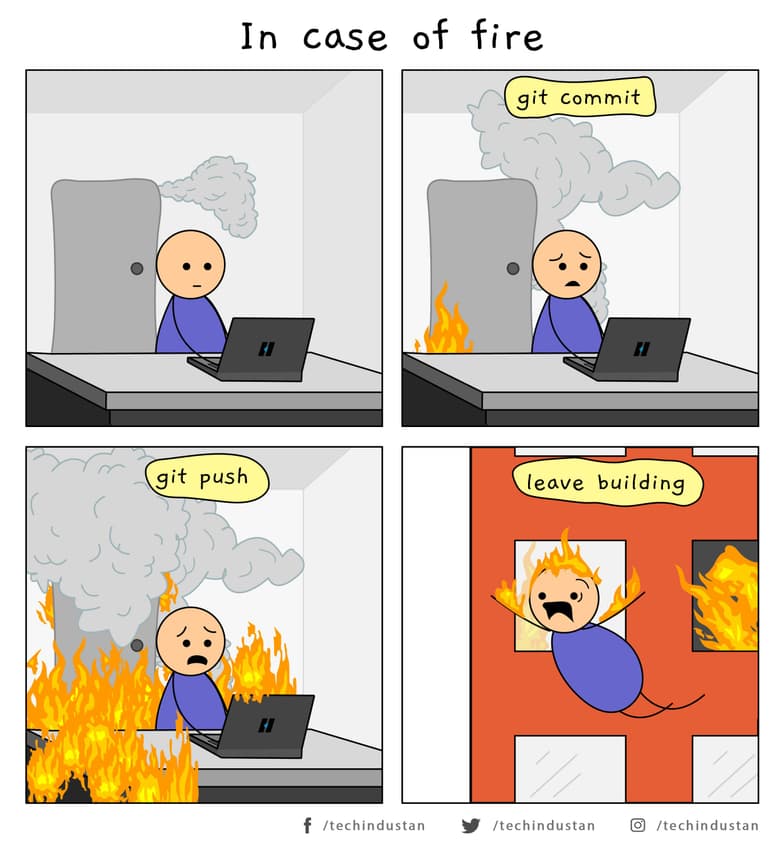
Once your feature is done and you've made sure your branch is fully synced up with main. push it to the remote repository.
# Push your local branch to the remote
git push -u origin feat/login
Now, go to your Git platform (GitHub, GitLab) and create a Pull Request (or Merge Request).
 Source: techindustan
When you open a PR, don't make the reviewer guess what's inside. A good PR should always include these things:
- Title: The name of the feature.
- Description: A quick summary of what changed, plus links to any relevant docs.
- Issue: A direct link to the ticket or bug this PR fixes.
- Result: Before and after screenshots so we can easily verify the visual changes immediately.
6. Code Review
The Pull Request is a request to merge your changes into main. Your team will review your code. They will give feedback, suggestions, and requests for changes.
Why code review is important:
- Catch Bugs Early: Multiple sets of eyes are better than one.
- Knowledge Sharing: The whole team learns about the new feature.
- Maintain Code Quality: Ensures consistency and adheres to team standards.
- Mentorship: The best place for senior devs to help guide the juniors.
Don't take the comments personally. We're all just trying to make the code better. If you need to make changes:
- Make the changes locally on feature branch.
git addandgit committhem.git pushto the remote. Your PR will update automatically.
7. Merge PR
Once your PR is LGTM and passes all automated tests (CI), it's ready to be merged. You can merge it into main.
After merging, you can safely delete your feature branch, both locally and on the remote.
# Switch to main
git checkout main
# Update local main with the now-merged feature
git pull origin main

# Delete the local feature branch
git branch -d feat/login
# Delete the remote feature branch
git push origin --delete feat/login
Best practices
Here are some practices that will make your workflow a lot smoother.
Commit message
I'll say it again: a good commit message saves everyone time. Stop guessing and just follow the Conventional Commits format:
<type>(<scope>): <short summary>
Where type can be:
feat: A new feature.fix: A bug fix.docs: Documentation changes.style: Purely formatting changes (spaces, indentation, etc.).refactor: Move files, code structure.test: Writing or updating tests.chore: Updating dependencies, build scripts, or tool configs.
Example:
feat(login): add login input component
Resolves ticket #456.
More reading: Contributing to Angular
Use .gitignore
Plz, do not commit your node_modules. Create a .gitignore file at the root of your repository so you don't accidentally push compiled files, huge dependency folders, local logs, or sensitive .env configurations to the world.
Use stash
You're in the middle of a complex feature, and a urgent bug comes in that you need to fix now. Plz, do not commit your broken code just so you can switch branches. Use git stash.
# Temporarily pack up all your changes
git stash
# ... switch to main, create a hotfix branch, fix the bug, merge it
# ... switch back to feature branch
# Brings back your stashed changes
git stash pop
Never push --force
If there is one rule the team must memorize to stop losing code, it is this: never, ever use git push --force on on a shared branch like main, uat, staging.
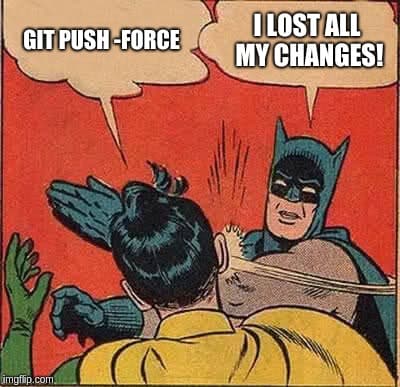
When you force push, you are completely nuking the remote history and replacing it with your own. If someone else pushed a commit five minutes ago and you force push, their code is gone. If Git is yelling at you, it means you need to git fetch and rebase or merge their changes first, not force your changes over theirs.
Conclusion
Remember, version control is supposed to make our lives easier, not harder.
See ya in the commit logs!!!