RGB is everywhere on the web, but honestly? It's kind of a pain to use. Like, if you just look at an RGB value, you can't really picture the color in your head.
Take this for example:
#0BAD31
No idea, right? That's the problem, RGB just doesn't make sense to how our brains actually work.
HSL
HSL was designed to better align with how our brains perceive color by breaking it down into three intuitive attributes: (H)ue, (S)aturation, and (L)ightness.
Hue
Think of Hue as just where the color sits on a color wheel. The colors you see there are pure, meaning they are distinct and easily recognizable. This attribute helps us label two different-looking shades as blue
, even if they vary in brightness or saturation.
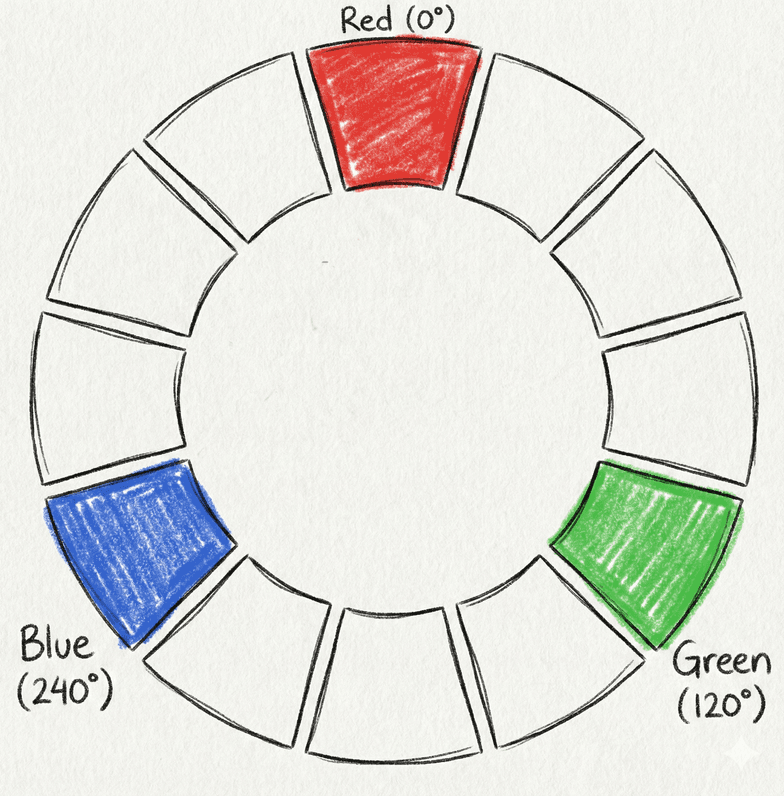
It's measured in degrees. So 0° is red, 120° is green, 240° is blue. To wrap our heads around this, let's just build a quick 12-color wheel.
We start with the foundation: the primary color triad: red, green, blue. Some people call these first-level colors.
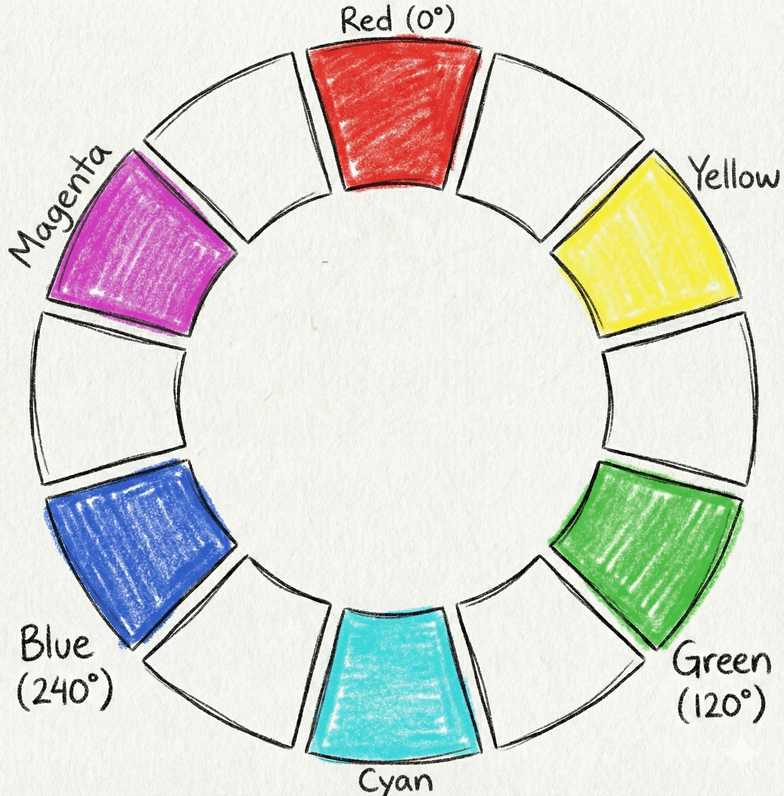
Next, we mix those. If you mix two primaries evenly, you get a secondary (or second-level) color. You just drop it right between its parents on the wheel.
For example, red and green make yellow, so yellow sits right between red (0°) and green (120°). It's a pretty simple concept. The level
of a color is just how many times you had to mix things to get there.
Then you just keep going to finish the wheel. Tertiary colors (or third-level) happen when you mix a primary with the secondary right next to it. Just like before, drop it right between the two colors you used.
Boom, now you have a complete 12-color wheel: 3 primaries, 3 secondaries, 6 tertiaries. It gives you this really nice, evenly spaced spectrum.
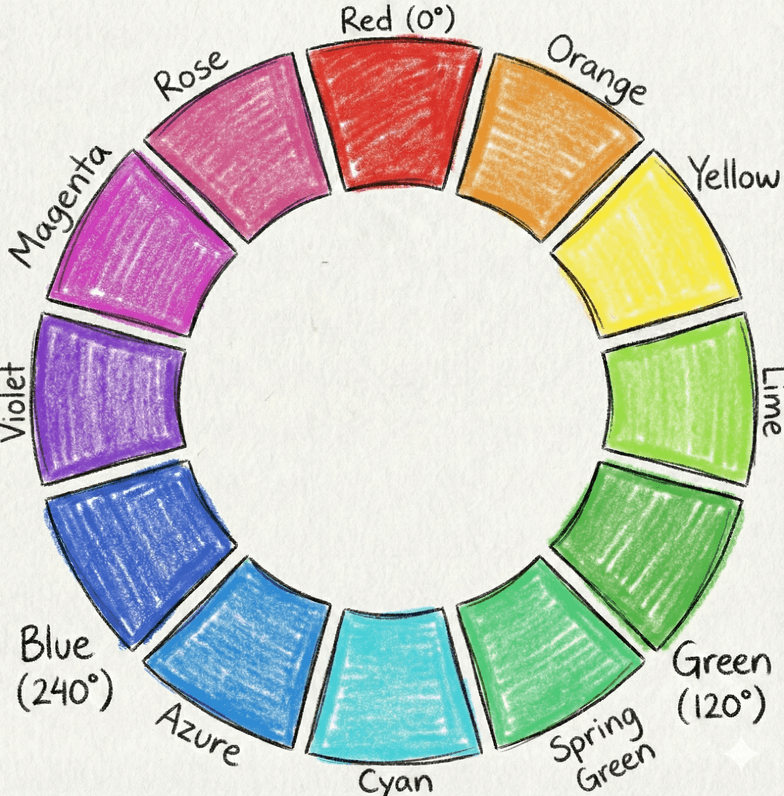
And you don't actually have to stop there. You can do fourth-level, fifth-level... just keep slicing the pie and mixing. Every time you split it, you get finer variations.
Basically, the wheel can just expand forever. That's how screens can show us millions of colors, they're all just branching out from a few core starting points.
Saturation
Saturation is just a fancy way of saying how colorful
or intense a color is. It tells you how much the Hue is actually showing up.
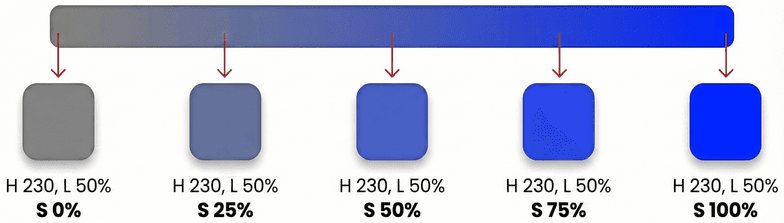
It ranges from 0% to 100%:
- Drop it to 0%, and the color is gone, you just get gray.
- Bump it to 100%, and it's super vivid and pure.
The funny thing is, if your saturation is at 0%, the hue doesn't even matter anymore. You could spin the hue dial all day and it's still just going to be gray.
Lightness
Lightness is exactly what it sounds like — How close is this thing to pitch black or pure white.
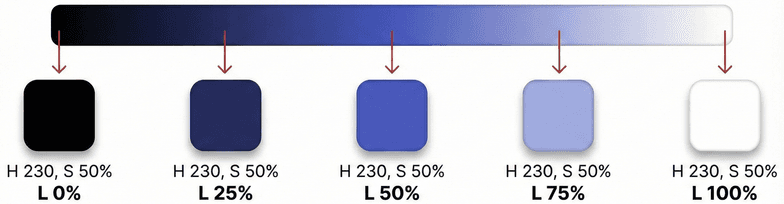
- 0% is pure black
- 100% is pure white
- 50% is right in the middle, that's where you get the truest, most vivid version of whatever hue you picked.
Let's look back at that random hex code from earlier:
#0BAD31
If we translate that to HSL, it looks like this:
Now, just by glancing at those numbers, you can actually guess what it looks like:
- Hue 134 puts it somewhere in the green zone.
- Saturation 88% means it's "very green" — strong and vivid.
- Lightness 36% tells us it's a bit on the darker side.
Put it together? A dark, super punchy green.
Pick colors for palette
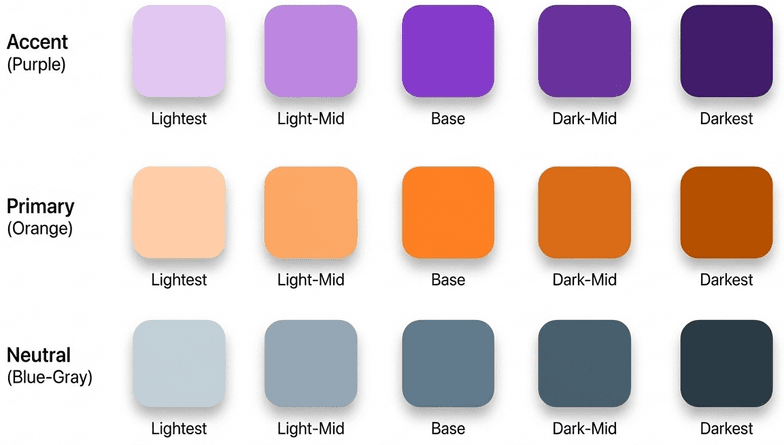
When you're building a modern site, you usually need 3 main types of colors:
- A neutral color – usually a bunch of grays.
- A primary color – for your brand, your buttons, main links.
- An accent color – just a little splash to grab attention.
Each of those usually needs like 6 to 8 different shades for things like hover states, borders, and backgrounds. So to build a system that actually works, you're looking at managing around 18 colors. Sounds like a lot of work, and yeah, it kind of is.
Choose a base color
For your primary and accent colors, you want to start right in the middle with your base shade. You'll build the lighter and darker versions around it later.
There's no magic formula for picking it, but my go-to rule is this:
Pick something that looks good as a button background.
If it works as a button, it's probably going to have good presence in your UI.
Oh, and definitely run it through a contrast checker (like WebAIM's Contrast Checker) to make sure people can actually read text on it.
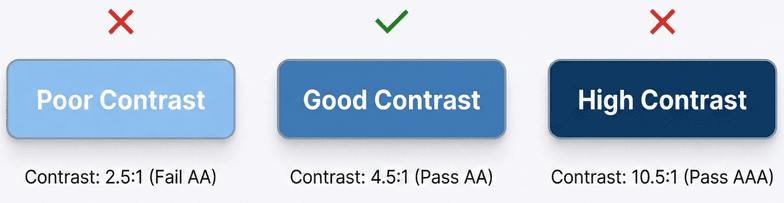
Keep in mind, the
middleshade doesn't automatically mean exactly 50% lightness. Colors are weird, some just naturally look lighter or darker than others even with the exact same numbers.So instead of relying purely on numbers, trust your eyes. (And try to do this on a calibrated, high-quality monitor, if u can). How it looks matters way more than what the numbers say.
Define the Boundaries
Next, figure out your absolute darkest and lightest shades. You'll probably using these for text and backgrounds in light and dark mode anyway.
Keep the Hue locked to whatever your base color was, just play around with saturation and lightness until it looks right. Lightness is the main axis you're tweaking here, you're basically setting the floor and the ceiling for your palette.
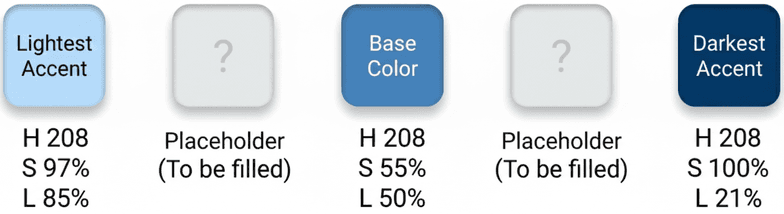
One thing to watch out for: when you push lightness super high or super low, the color kind of washes out and disappears. To bring it back, try bumping the saturation up a bit when lightness get further away from the middle (50%).
Filling gaps
Now that you've locked in your darkest, lightest, and base shades, it's time to fill in the gaps.
Alright, so you've got your darkest shade, your lightest shade and your base right in the middle. Now you just need to fill in the gaps.
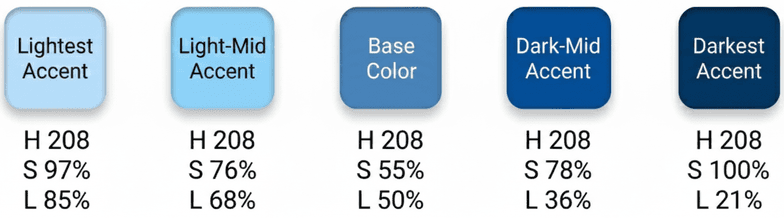
Pick a few spots in between and just adjust the lightness up or down. You might need to tweak the saturation to keep the color looks natural. Need more shades? Just split the difference between the ones you already have.
If you do this right, you end up with a color scale that feels super smooth and natural visually.
Just do that same exact thing for your grays and your accent color, and you're pretty much done. You've got a clean, modern color system.
Conclusion
Honestly, there isn't some perfect, magical formula for picking a color palette. But if you know how to set it up, you can basically let the math and the structure do most of the hard work for you.